
Is Your iPhone Listening to You? Here’s How to Stop It
 Reading Time: 3 minutes
 TL;DR Summary: The post provides a guide on how to disable microphone and tracking access on an iPhone to prevent apps from listening in and delivering personalized ads. It explains steps to turn off app tracking, disable microphone access for apps, and stop Apple personalized ads. Taking these measures can help users regain some control over their digital privacy.
How to Turn Off Microphone and Tracking Access on Your iPhone
Ever talked about a product out loud, only to see an ad for it pop up minutes later on Instagram or Facebook? Yeah, you’re not imagining things—and no, it’s not a coincidence.
Your phone is always listening. Not necessarily in a sinister way, but many apps have microphone and tracking permissions turned on by default—and they use that data to feed you personalized ads. From someone who is in the advertising world, we really like this feature. Think about it – if you’re a small business owner, being able to target the exact audience you need is super important.
If that creeps you out, however, you’re not alone. The good news? You can take back some control. Here’s how to stop ad tracking on your iPhone, step by step.
1. Turn Off App Tracking
This is the big one. Your iPhone allows apps to track your behavior across other apps and websites. Here’s how to shut that down:
- Open the Settings app.
- Scroll down and tap Privacy & Security.
- Tap Tracking.
- Toggle “Allow Apps to Request to Track” to off.
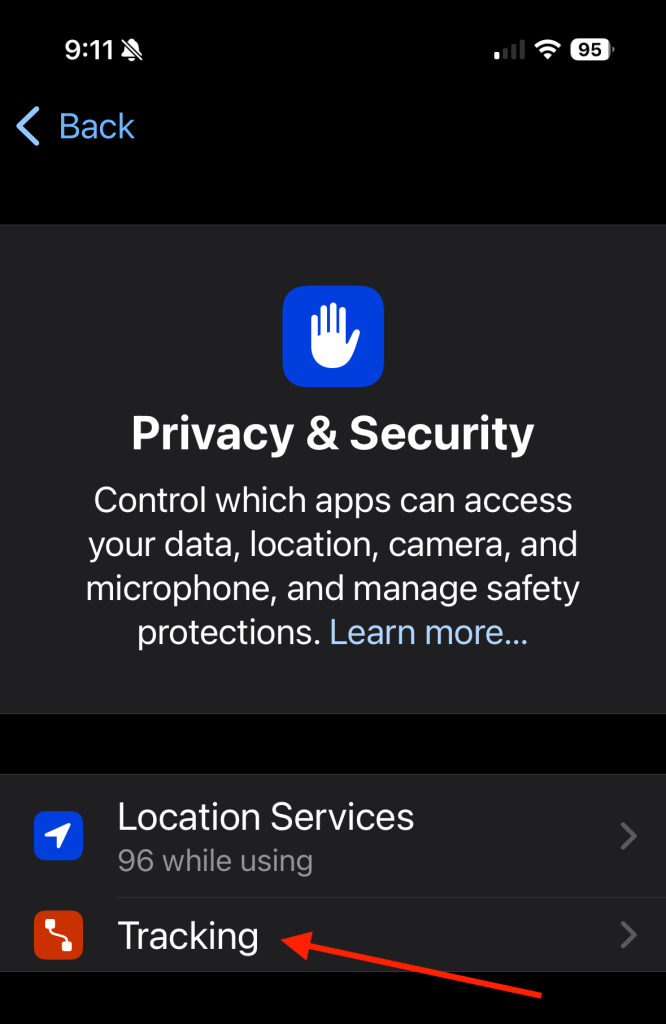

You’ll also see a list of apps that have requested tracking permission. You can manually turn them off one by one if you want more control.
2. Disable Microphone Access for Apps
Some apps don’t need to listen to you—but they have access to your mic anyway. Here’s how to revoke that access:
- Still in Privacy & Security, tap Microphone.
- You’ll see a list of apps with microphone access.
- Toggle off any app you don’t want listening in.
Of course, some of these apps do need microphone access to function properly, so keep that in mind while making this decision.
Tip: Leave your phone and say a weird phrase like “blueberry couch disco.” If you see that show up in an ad later, you’ll know who the culprit is.
3. Turn Off Apple Personalized Ads
Apple itself isn’t completely innocent. It uses your data to personalize ads in the App Store and News. Here’s how to stop that:
- Go back to Privacy & Security.
- Scroll all the way down and tap Apple Advertising.
- Toggle off Personalized Ads.
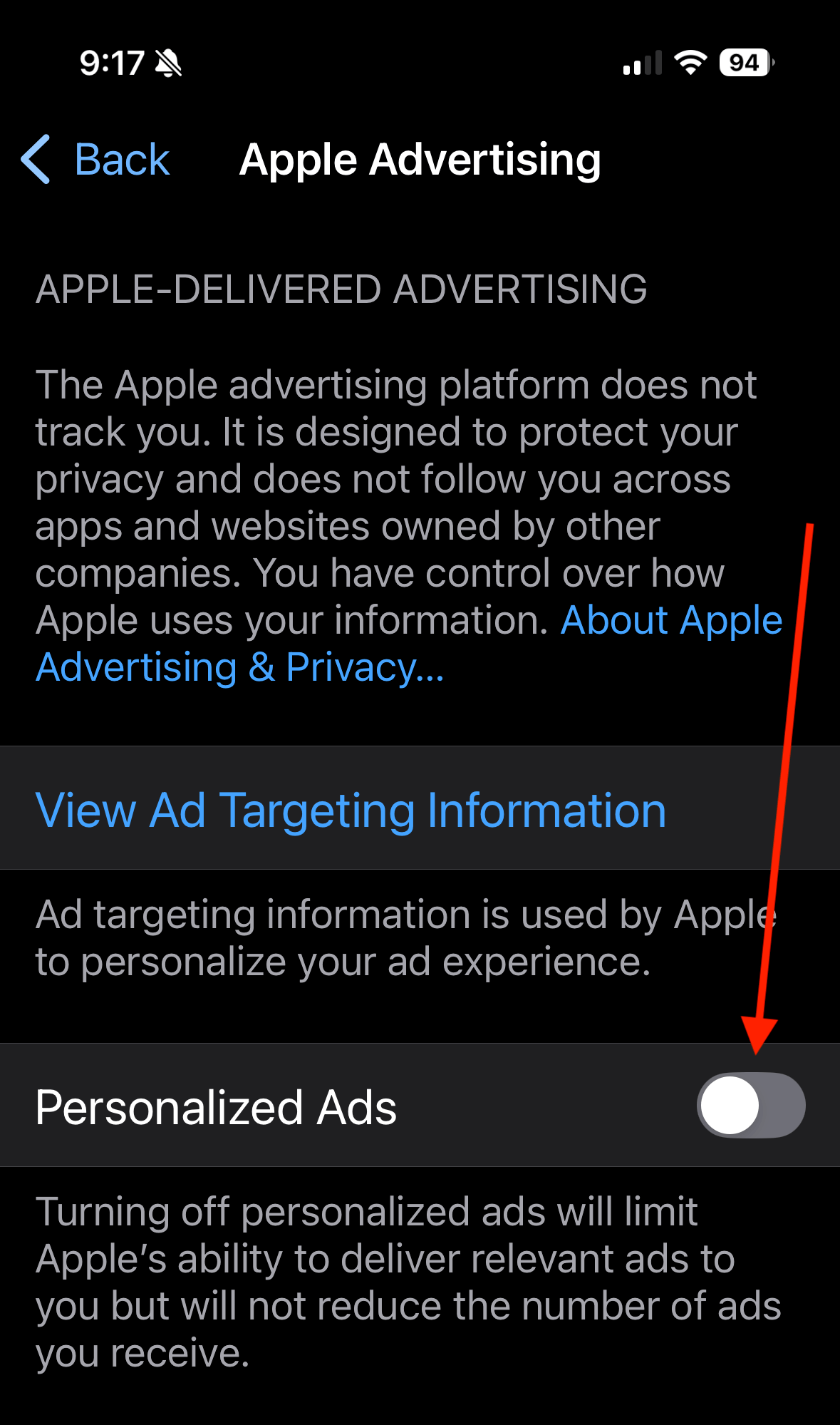
Is this going to stop 100% of ads? No. But it stops targeted ads based on your behavior, which is the part that feels creepy.
Bonus: Share This With Someone Who Thinks You’re Paranoid
We’re not saying your phone is part of some grand conspiracy—but it is feeding your data into systems designed to sell you stuff. This guide helps you pull the plug on a lot of that behavior.
Digital privacy is a moving target, but taking 5 minutes to review your settings is a solid first step.
📄 Download a PDF of This Article


