How to Record Video Using the Mirabox Capture Device on a Mac
 Reading Time: 2 minutes
 TL;DR Summary: Enhance your gaming experience with the Mirabox Capture Card. Ensure it receives sufficient power by connecting it to a powered USB hub for optimal performance. Easily record and save your gameplay by selecting the Mirabox as your source in QuickTime Player. Ready to level up your gaming content? Read on for detailed instructions.
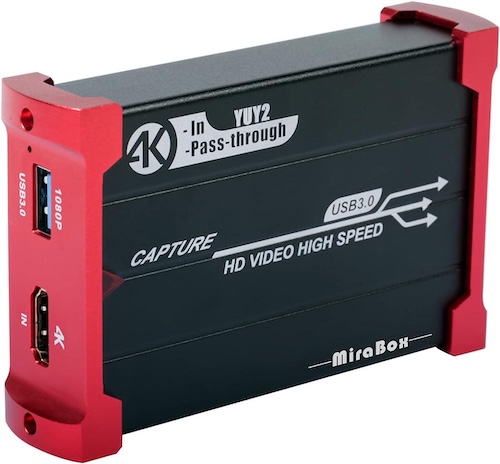
I’m using this device, which is a Mirabox Capture Card / box.
You can get it on Amazon. It’s what gamers use to capture their screens. It has a USB out, which is also the power, and then HDMI in and out. It’s basically a pass-though device. It sits between your source and the TV. The source can be a Nintendo or even an ONN box in my case) or other device that has an HDMI output.
I had problems using it with my computer. It wouldn’t turn on. I ended up plugging it into my powered USB hub for my MacBook Pro and that fixed it. Basically, your laptop won’t give this device enough power, so you need a powered USB hub to help.
Next, fire up QuickTime Player and choose to record a new movie:
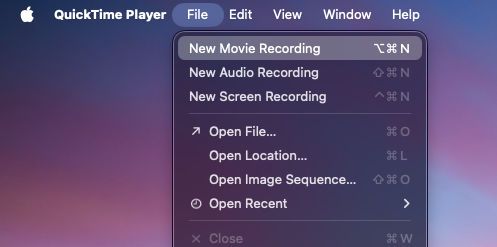
You should then see whatever input you have coming through the Mirabox show up if you have the Mirabox selected as your source. You can then save it as a .mov file. I then convert it to MP4 in Camtasia, but there’s probably a better way to do it.
📄 Download a PDF of This Article