How to Find the Link to Your Google Business Profile
 Reading Time: 4 minutes
 How do I Share my Google Business Link?
If you’ve ever tried to share a link to your Google Business Profile — especially the exact page where people can leave you a review — you probably realized something: it’s not easy. Google doesn’t make it super obvious where to find that link, and even when you do, it’s usually long, ugly, and not user-friendly.
This article will walk you through how to find your Google Business Profile link, how to get the direct review link, and how to actually use those URLs in smart ways — like custom domains, redirects, and QR codes.
Why You Need a Direct Link
Having a clean, direct link to your Google Business Profile (GBP) helps with:
- Sending happy customers straight to your review page
- Adding credibility to email signatures or footers
- Using QR codes on receipts, signs, or packaging
- Including a review call-to-action on your website
It’s all about reducing friction. If someone has to search for you or click around, they probably won’t bother. One click = more reviews.
How to Find Your Google Business Profile Link
- Search for your business on Google.
Make sure you’re logged into the account that manages the profile. Then search for your business name. You should see a special management panel appear above or beside the normal search results.
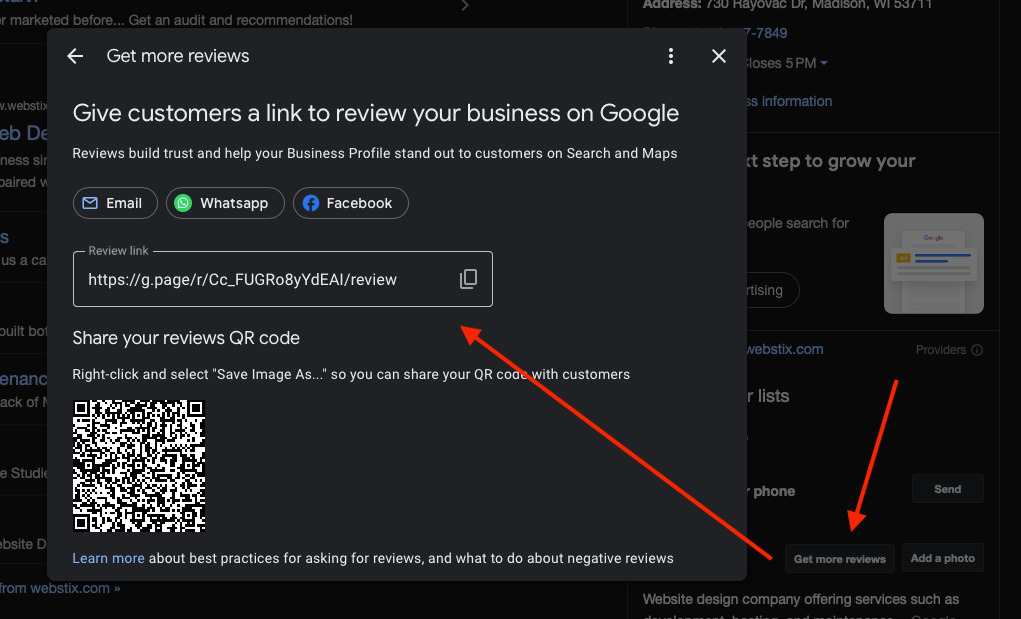
- Click “Ask for reviews.”
In the Business Profile panel, look for a button that says something like “Ask for reviews.” It may also appear as a “Get more reviews” prompt.
- Copy the review link.
Clicking that will pop up a window with a long URL. This is your direct review link. Copy it.
That link will look something like this:
https://g.page/r/Ca12345678XYZ/review
If you want just the *main profile page*, search for your business and copy the URL directly from the address bar. But note: this only works consistently in Google Chrome, and it may include extra parameters. The review link is more stable and shareable.
What If You’re Not Logged Into Your Google Business Account?
If you’re not logged into the Google account that manages your Business Profile, you won’t see the “Ask for reviews” button — but there’s still a way to get your review link.
- Go to the Google Place ID Finder tool:
Visit this page and scroll down to the demo map (under “Find the ID of a particular place”).
- Type your business name and location into the search box.
For example: “Webstix, Madison, WI”
- Click your business when it appears in the autocomplete dropdown.
A Place ID will show up below the map.
- Copy the Place ID and plug it into this format:
https://search.google.com/local/writereview?placeid=YOUR_PLACE_ID
Example:
https://search.google.com/local/writereview?placeid=ChIJN1t_tDeuEmsRUsoyG83frY4
This method doesn’t require logging into a business account. Once you have the link, it works just like the regular “Ask for reviews” link — it goes straight to the review prompt screen.
You have the link now, so… then what?
Clean It Up with a Link Shortener
That default review link is long and not pretty. You can run it through a service like:
This gives you something like bit.ly/reviewmybiz that’s easy to share in emails, social posts, or text messages.
Pro Move: Use a Custom Domain Redirect
If you want to go one level up, do what we did with reviewwebstix.com.
That’s a domain we own, and it automatically redirects to the Google review link. Anyone who types it in (or scans the QR code) gets sent right to our review box with zero confusion.
To set this up:
- Buy a short, brand-relevant domain (like reviewyourbrand.com) at Webstix Domains.
- Set up a redirect using your domain registrar or a simple web hosting account with a redirect script. A 301 redirect is a permanent redirect, and what you want to use here.
- Test the link. It should instantly land people on your Google review screen.
A custom gives you full control and flexibility, and it’s a nice shortcut – even for yourself. You can update the destination later if Google changes the structure or if you want to direct people elsewhere.
Bonus: Add a QR Code
Now that you have a clean, friendly link — either shortened or through your custom domain — turn it into a QR code using a free tool like:
Print the QR code on business cards, invoices, receipts, packaging, or even your front desk. It’s an easy way to ask for reviews without being pushy.
How to Use Your Link
Here are a few smart places to drop your link once it’s set up:
- In your email signature with a “Leave Us a Review” prompt
- On your website’s contact or thank you pages
- In follow-up emails after a completed service or purchase
- In social media bios or posts thanking customers
- On printed materials like menus, brochures, or instruction sheets
Final Thoughts
Your Google review link is more valuable than most people realize — but only if it’s easy to use. Take a few minutes to find it, shorten it, and turn it into something your customers can actually use.
If you want to go all-in like we did with reviewwebstix.com, it becomes a real asset. And if you need help setting that up, just get in touch. We can help you build it once and use it everywhere.
📄 Download a PDF of This Article