

What’s the Easiest Way to Compress Images for a Website Without Losing Quality?
How I Compress Website Images Fast
If you build websites long enough, you start caring about stuff most people never think about.
Like image file sizes.
I’ve seen a single “harmless” hero image slow a page down, tank PageSpeed scores, and make a site feel sluggish on mobile. And what’s worse is most of the time it’s not even a bad photo. It’s just… too big.
So I compress images constantly. It’s one of those boring little steps that makes a noticeable difference.
And that’s exactly why I built ImageMinimizer.com.
Why I Built ImageMinimizer.com
I used another image compression tool for a long time. It was simple, quick, and it just worked.
Until it didn’t.
One day the tool changed how it worked, started throwing errors, and suddenly my “quick 20-second task” turned into a frustrating mess of retries and workarounds.
And I thought: I use this all the time. If it’s going to be part of my workflow, I want something reliable that works the way I expect.
So I built my own.
What the Tool Does
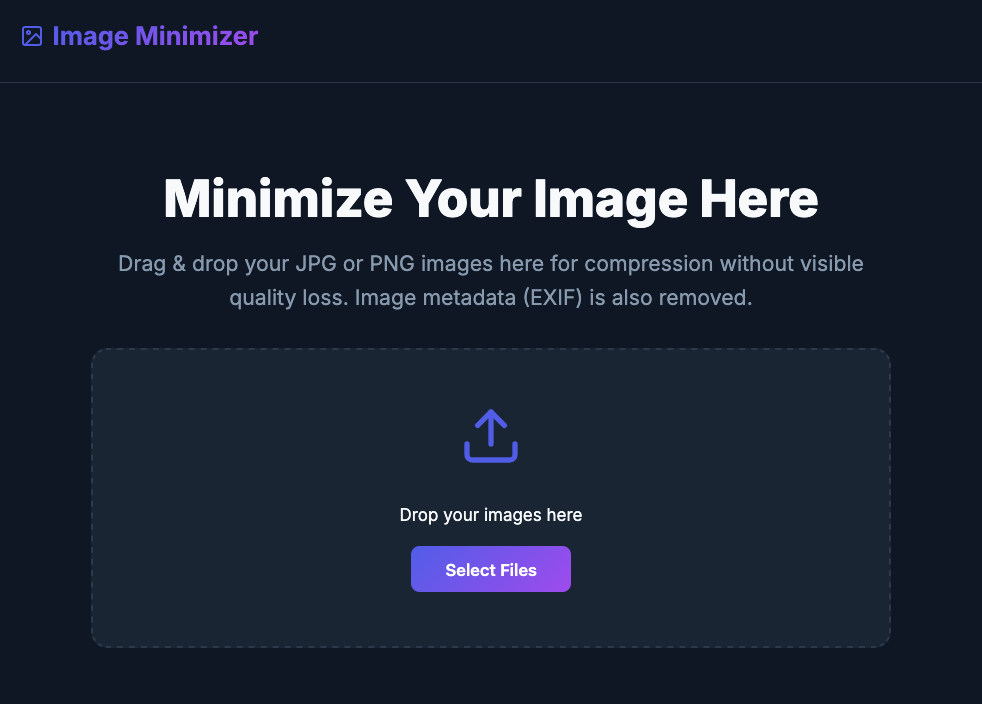
ImageMinimizer.com is a simple online tool that helps you:
- Compress JPG and PNG images to reduce file size
- Keep quality looking the same (no obvious crunchy artifacts)
- Remove image metadata (EXIF) automatically
You drag in your images, it compresses them, and you download the smaller version. That’s it.
Why Compressing Images Matters for Websites
If you’re posting images to a website, compression is one of the easiest wins you can get.
Here’s what it helps with:
- Faster load times (especially on mobile connections)
- Better user experience (people stay when pages feel snappy)
- Better SEO performance (site speed and engagement matter)
- Lower bandwidth usage (good for you and your visitors)
In plain terms: a lighter image usually means a smoother site.
A Quick Note About EXIF Metadata, and Why You Might Want It Removed
A lot of images contain extra info you didn’t intentionally add.
That’s called EXIF metadata, and it can include things like:
- camera model
- camera settings
- date/time
- sometimes even GPS location (depending on device settings)
For most website use cases, that data doesn’t help you at all. It’s just extra weight.
So ImageMinimizer removes it during compression. Cleaner file, smaller size, fewer “hidden surprises.”
When I Use This Tool
I use ImageMinimizer constantly when I’m building or updating websites, especially when:
- I’m uploading blog post featured images
- I’m adding portfolio images
- I’m prepping images for landing pages
- I’m trying to get a page to load faster without changing design
It’s one of those tools that isn’t exciting… but I’d notice immediately if I didn’t have it.
How to Use ImageMinimizer.com
- Go to ImageMinimizer.com
- Drag and drop your JPG or PNG images into the box
- Wait a second while they compress
- Click Download to grab the smaller versions
- Upload those to your website instead of the originals
That’s it. No account, no complicated settings, no nonsense.
Try It
If you’re the kind of person who posts images to websites (or you’re trying to speed one up), give it a shot:
And if you ever run into a tool you used to like that suddenly changes and starts breaking your workflow… I get it. That’s basically the whole reason this exists.
FAQs About Image Compression and Metadata Removal
Does compressing an image hurt quality?
It can, but it doesn’t have to. Good compression reduces file size while keeping the image looking the same to the human eye. If you push compression too far, you’ll start seeing artifacts (blurry edges, banding, or weird blocky areas). The goal for website images is usually “smaller file, same look.”
What image formats does ImageMinimizer support?
Right now it supports JPG and PNG, which covers most website use cases (blog images, featured images, photos, screenshots, and graphics).
What is EXIF metadata, and why remove it?
EXIF metadata is extra data stored in an image file. It can include things like camera model, date/time, and sometimes location data depending on your device settings. For most website uploads, you don’t need it, and removing it can reduce file size and keep uploads a little cleaner from a privacy standpoint.
Will removing EXIF metadata delete the image itself?
No — it removes the extra “info attached to the file,” not the pixels. The image still looks the same. You’re just stripping out the hidden data that usually isn’t useful on a website.
How small should website images be?
There’s no perfect number, but as a general goal: keep most on-page images under 300–500 KB when you can, and keep big hero images as small as possible without visible quality loss. The right target depends on the image dimensions and what it’s used for.
Do I still need to resize images, or is compression enough?
Compression helps a lot, but resizing matters too. If your site displays an image at 1200px wide, uploading a 6000px-wide version is usually wasted weight. The best approach is: resize to a reasonable dimension, then compress.
Why not just let WordPress handle it?
WordPress does some helpful things, but it won’t always compress images as aggressively as you’d like (and it won’t always remove metadata). Prepping images before upload gives you more control and usually leads to faster pages.